03 / PURCHASE & VERIFICATION
App Verification and Purchase Details
Shadowrocket Official Manual is the official Shadowrocket website and manual. Verify the App Store listing, developer, and purchase status in the App Store. Follow the setup instructions using connection details you already have.
VERIFY / 01
Developer, Icon, and App ID
On the App Store product page, verify the product name Shadowrocket, the developer Shadow Launch Technology Limited, and app ID 932747118 in the product page URL. The icon should match the official icon at the top of this page. A similar name is not enough to confirm an app's identity, and its position in search results is not a substitute for checking these three details.
You can start with the App Store guide to open the product page, then check the listing and purchase button. If the page redirects to the storefront for your account, verify the developer and app ID rather than relying on the region in the URL. Before purchasing, review compatibility, the current price, and the store description to avoid mistaking another app's features for Shadowrocket's.
See How to Verify All Three Details →
STORE / 02
Search Results and Your Account's Storefront
App Store search results depend on your account's storefront, access restrictions, and account status. If you cannot find the app, use the product page link in the App Store guide to check whether the page opens, then review the storefront region, age-rating restrictions, and any account alerts. One unsuccessful search does not by itself mean the app is unavailable.
Your App Store region determines the available product range; your device's display language does not affect your account's purchase eligibility. If the page says the app is unavailable, check the reason shown by the App Store. Before changing your account's region, review Apple's guidance on balances, payment methods, and existing services. Availability for purchase depends on the App Store page shown to your account.
See App Store and Account FAQs →
PURCHASE / 03
The Purchase Covers the App
Shadowrocket is a paid, closed-source commercial app sold as a one-time purchase. The US storefront price is about $2.99; other storefronts show prices in local currencies. The amount charged is the one shown on the payment confirmation screen. App Store manages purchase records, and app updates are also available through the App Store. Check your device's App Store update settings to manage automatic updates.
Buying the app does not buy a connection plan. Purchasing the app does not provide a server, subscription link, or authentication details. This site does not provide, sell, or recommend servers or subscriptions. The term, data allowance, and access conditions of any connection service you already have are managed separately from the app purchase. When a connection fails, identify which part is at fault before considering another app purchase.
Read About Pricing and One-Time Purchases →
RESTORE / 04
Restoring the App and Connection Details
When reinstalling or moving to a new device, first check your App Store purchases using the Apple ID you used to buy the app. Universal purchase eligibility for iPhone and iPad, compatibility with other devices, and Family Sharing availability are subject to the App Store listing. If the button still shows a price, confirm the account and original purchase record before paying again.
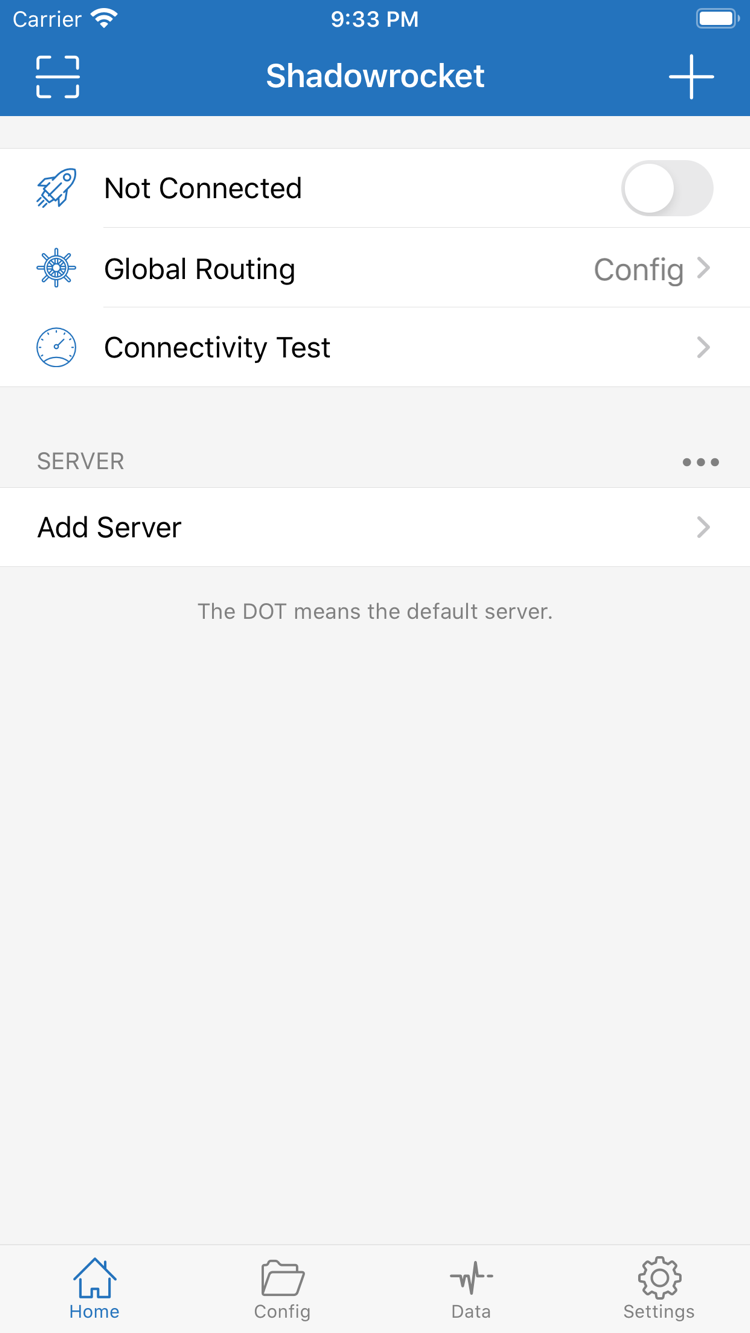
After downloading the app again, check separately whether your subscriptions, manually added servers, and configuration files have been restored. If you use iCloud sync, verify the relevant settings and confirm that the data actually synced. Keep a restorable backup of important information. After migration, review servers in Home, files in Config, and the current Global Routing mode, then test an actual connection.
Read How to Restore Purchases →
First Connection: Check Three Layers
First, check the server details: use an existing subscription link, or enter the original details in Add Server. A successful save only confirms that the entry was recorded. Make sure Type, address, port, and authentication details all refer to the same server. After scanning a QR code or importing from the clipboard, review the imported content too, especially for missing details or incorrectly recognized protocol fields.
Second, check routing: when Global Routing is set to Config, rules in the active configuration affect request routing. When Proxy or Direct is selected, understand what each policy does. Third, verify the connection: connect, visit a specific destination, and check the relevant diagnostics. Treat “details imported,” “configuration selected,” and “request succeeded” as separate checks so you can pinpoint what to fix if something fails.
Save a copy of the original file before editing a configuration. During troubleshooting, keep the network and server unchanged. Change one setting, then repeat the same steps and compare results. If you update a subscription, change servers, and edit rules all at once, even restored access will not reveal which change made the difference. For a step-by-step walkthrough, read the Getting Started guide. For organizing, updating, and backing up multiple subscriptions, see the Server Management Manual.
Frequently Asked Questions
Why check Config after importing a subscription?
Subscriptions typically manage server details, while Config manages rules and other settings; they serve different purposes. Importing servers does not confirm that the current rules suit your needs. Check Global Routing, then review the selected file and the policy that matched the request. See the Glossary for related terms.
Does a successful Connectivity Test mean all requests are working?
A test reflects only its specified method and the network conditions at the time. Actual requests also depend on the destination, domain resolution, rules, and server connection conditions. Reproduce the issue with the specific destination and note the test method and conditions. See Rule-Based Routing and Troubleshooting.
Will manually edited entries remain after a subscription update?
An update reads the remote subscription again, so local changes to subscription-managed entries should not be treated as permanent. Back up anything you need to keep, and distinguish manual entries from subscription entries. Before updating, read How to Update, Delete, and Back Up. Do not identify servers by their display names alone.
What should I remove before reporting an issue?
Describe the screen, steps, and network conditions involved, but remove access credentials from subscription links, server passwords, and personal browsing records. You can replace example addresses with example.com while keeping the protocol name and field structure to show where the issue occurs. Before submitting, use the Troubleshooting Guide to check what information is needed.